9-pin Scorer Basic User Guide
This guide is for everyday club use. It focuses on the simplest workflow for club officers and scorekeepers.
For the complete operational reference, see docs/USER_GUIDE.md. For the documentation framework behind these guides, see docs/DOCS_SYSTEM.md.
Who Uses What
Club Officer / Admin:- Sets up the club
- Creates leagues, teams, and bowlers
- Chooses the session host
- Can unlock and manage devices
- Can take over a match if a scoring tablet has trouble
-
Can open lane TV displays for external screens
-
Scorekeeper: - Opens the assigned lane or lane pair
- Starts or continues matches
- Enters lineups
- Records live scoring
First-Time Setup
Use one admin device for initial setup. It holds the center's license; scorer tablets need no key.
- Open the app.
- Tap through the welcome screens.
- Choose one of these on the final welcome step:
Create a Clubfor a brand-new center (Windows or Android; on iPad and Mac the app runs as a scorer tablet and offersTry the Demoinstead). This device becomes the admin device: start the 90-day free trial or enter your center's license key on theLicensescreen, then set up the club.Add This Deviceto add a scorer tablet. Scan the setup code shown on the admin device (or selectEnter Code Insteadand type the IP address and 6-digit code).Restore Backupto load an existing club backup onto this device.- If creating a new club, enter the club name.
- Create the admin PIN.
- Save the club details.
- After the first save,
Homeshows aFinish Setting Upchecklist with the next steps. - Go to the
Clubtab. - Add leagues, teams, and bowlers.
- Leave the network ports alone unless Bluetrace support asks; they are in
Settings > Advanced. -
Add each scorer tablet in
Club > Device Setup(Add Device, roleScorer Tablet, its lanes), then show its setup code and useAdd This Deviceon the tablet. If two scorer tablets would share lanes, the app asks before assigning them.Use one admin device per center. An admin device has no lane. Turn on
Score matches on this deviceinDevice Settingsonly if the admin device should also score. An additional admin device needs its own Admin Only license key.
Keeping scorer tablets up to date:
- Matches sync on their own. League setup edits (teams, bowlers, schedules),
Settings(includingAdmin PIN, the ports, Presentation Mode settings,Score Text Size, and the idle TV settings), and lane changes made in Device Setup reach a tablet when it syncs. - On the tablet:
Device Info>Sync Now. - On the admin device:
Club > Device Setup, select the tablet, and tapSync. Re-Scan Setup QRon the tablet also works.
License note:
- The license is per center. Only the admin device enters the license key.
- The license sets how many devices the center can use, counting the admin device.
Club > Device Setupshows the count, for exampleDevices: 5 of 8. At the limit, remove a device or contact Bluetrace to add devices. - Scorer tablets follow the admin device's license. If it expires or is suspended, they pause scoring until it is renewed.
- If a club moves into
Archive Mode, the app stays available for viewing history and setup records, but editing and scoring are locked.
Before League Night
On the admin device:
- Open
Club > Device Setup. - Confirm the tablets that will be used.
- Choose the tablet that will act as the
Session Host. - Make sure each scorekeeper tablet is assigned to the correct lane or lane pair.
- If needed, open the league and review lane assignments for that date.
Important:
- The session host does not need to be a dedicated device.
- The session host can also be used as a scoring device.
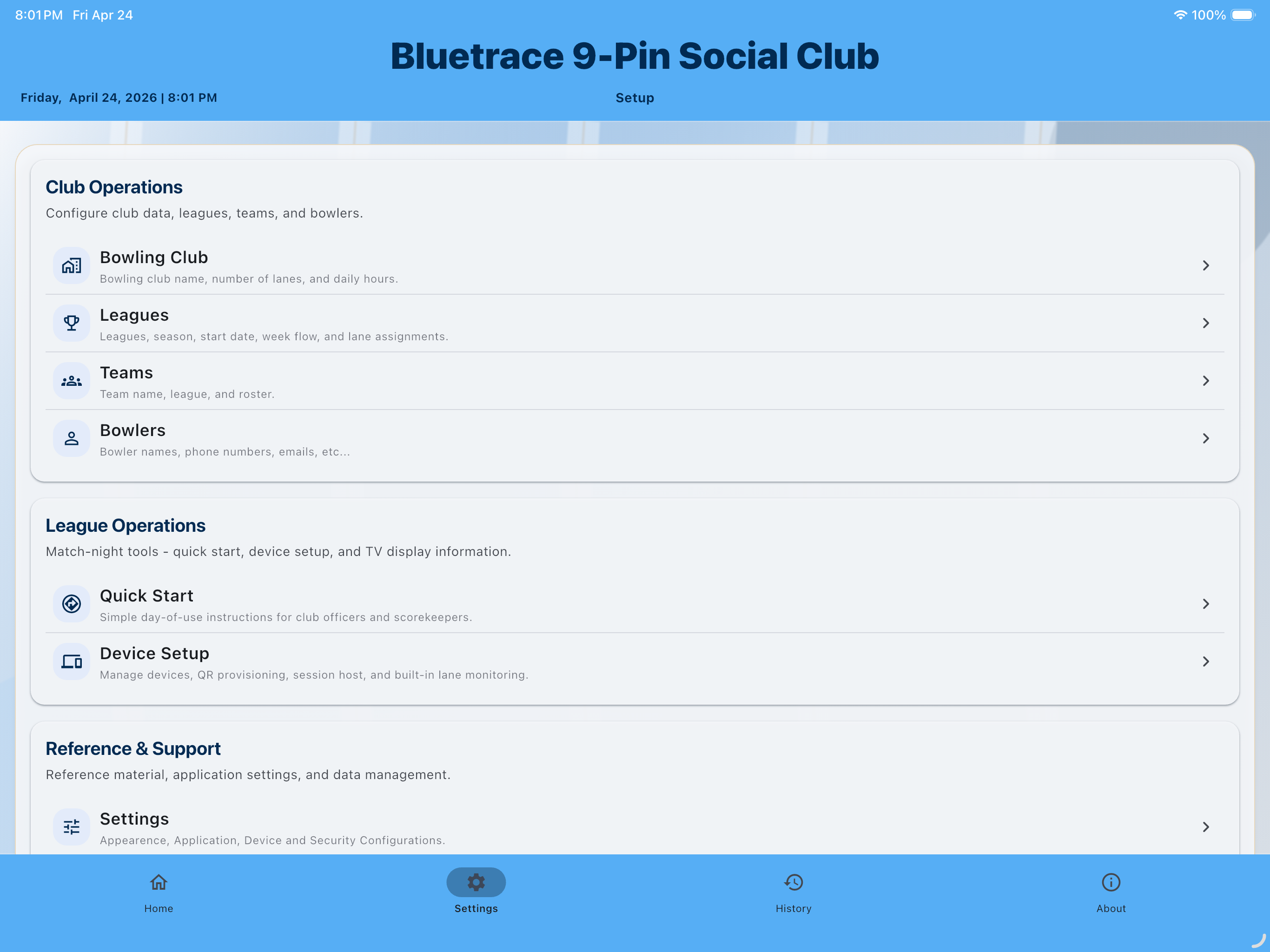
Managing Teams
- Open
Club > Teams. - Use
League Filterto switch betweenAll Leaguesand one league at a time. - Open the team you want to review or edit.
Managing Bowlers
- Open
Club > Bowlers. - Use
League Filterto switch betweenAll Leagues, one league grouped by team, orUnassigned / Free Agents. - Open the bowler you want to review or edit.
Bowler details note:
- Bowler records now include
SexandEnroll Date. Enroll Dateis the source for futureMember Sincereporting.
Starting A Match
On the device assigned to that lane:
- Open
New Match, or open the match fromToday's Lane Board. - Confirm the league and date.
- Confirm the lane or lane pair.
- Check that the correct teams are shown.
- Fill each lineup slot.
- Mark missing bowlers as
Absent. - Tap
Start Live Scoring.
If you start the match from the admin device, the button says Start Match: the match goes to the scorer tablet on those lanes, and the admin device stays on the dashboard.
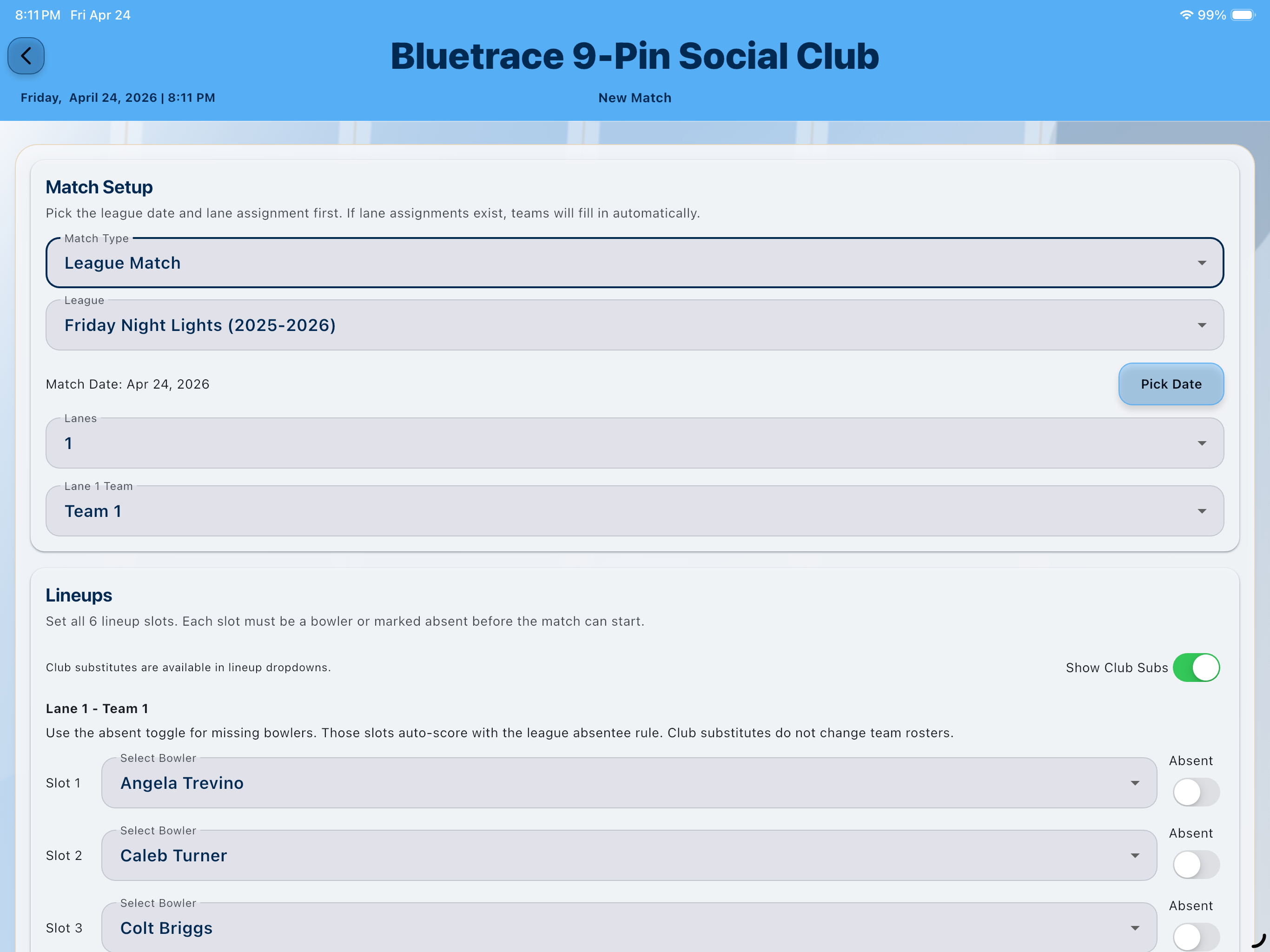
Lineup note:
New Matchcan also show club substitutes for open lineup slots.- Use
Show Club Subsif you want the dropdowns limited to rostered bowlers only.
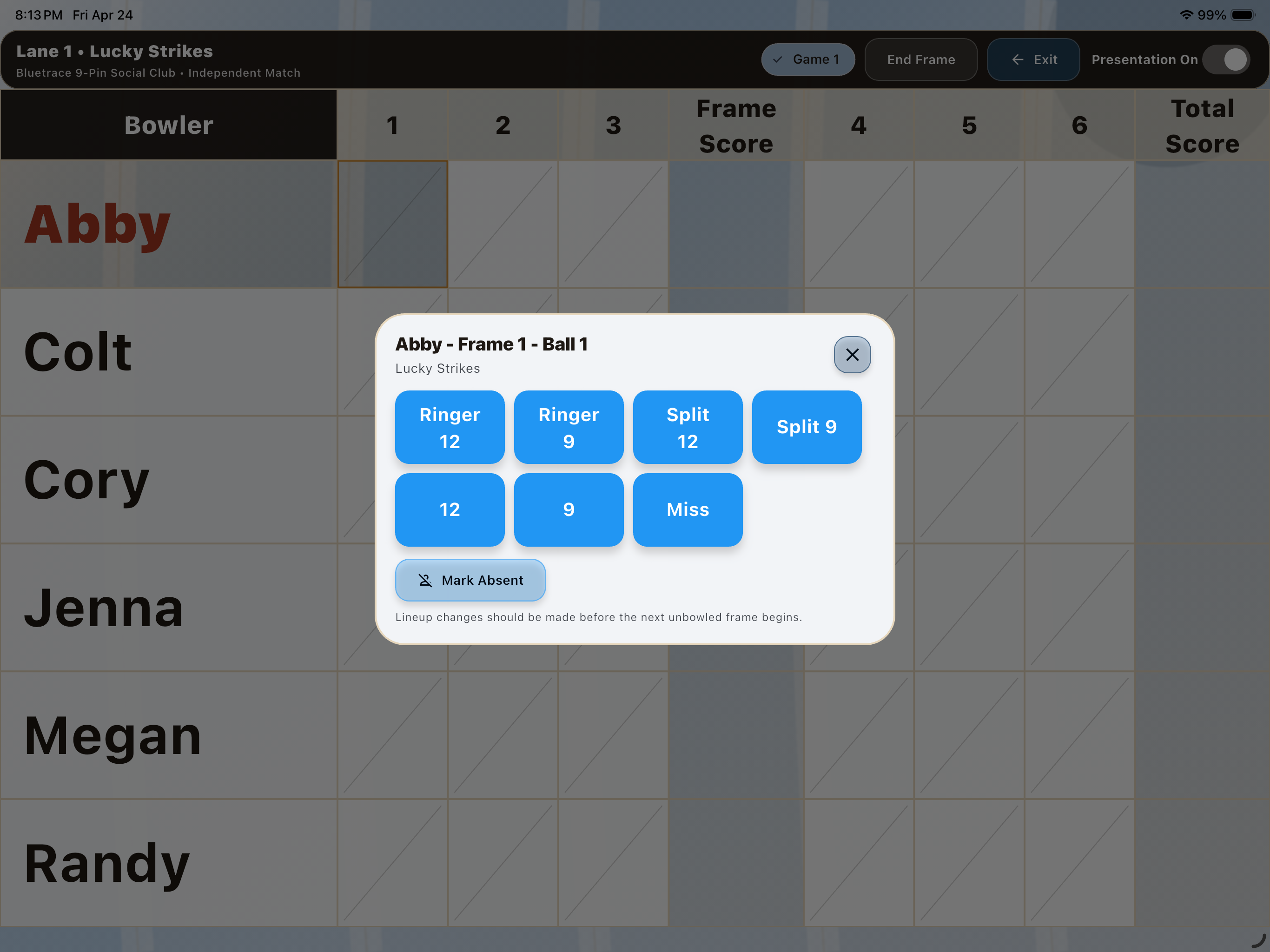
During Scoring
- Open the live match.
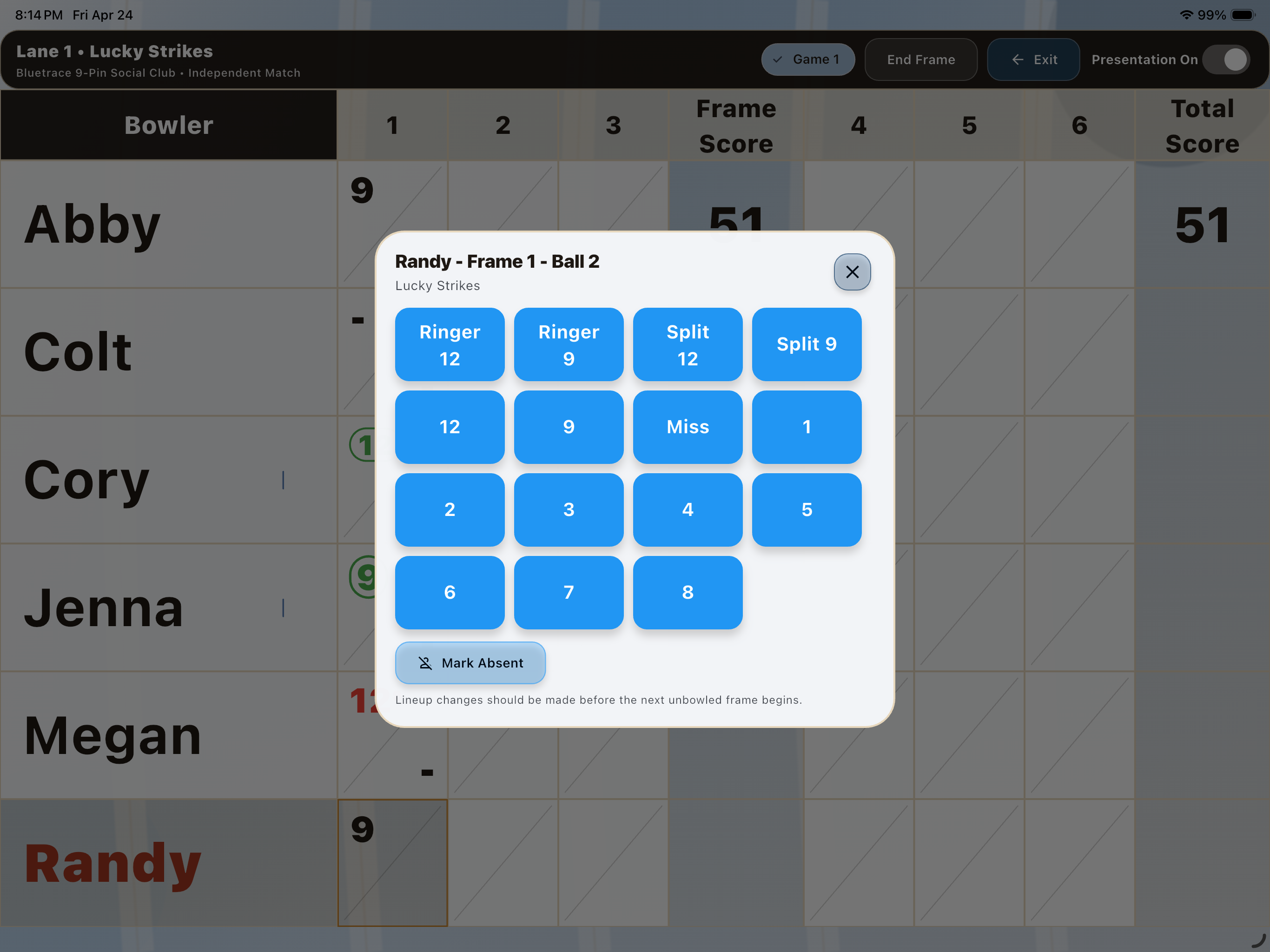
- Tap the correct bowler cell.
- Enter the result for that ball.
- Repeat until the frame is complete.
- Move to the next frame as bowlers continue.
- If you need to fix a mistake before finalizing, tap the earlier frame cell and re-enter that score.
Short roster note:
- If a team has fewer than 6 eligible active bowlers, mark the remaining lineup slots as
Absentbefore starting the match.
Common scoring buttons:
R9= all 9 pins downR12= all except the red pinSplit= split pickup9= cleared a partial rack12= red pin left on a partial rackMiss= no clearing result
Ending A Match
Roster lock note:
- Team roster changes are blocked only while that team is in a live match.
- After the match is completed, roster editing is available again.
-
Completed match history keeps the original saved matchup details even if team rosters or names change later.
-
Review the final game.
- Tap
Finalize Match. Every scoring tablet that has the match open, including the other lane's, switches to the match recap. - The lane TVs show the final scorecard. When you're ready to clear them, tap
Close Matchin theCompletedsection of the admin device's dashboard. They also clear by themselves after 15 minutes (change this inSettings > TV Displays > Finished matches). - If needed, go to
Historyto print the scorecard.
If A Device Says Read-Only
That usually means another device currently owns the live match.
Use this process:
- Go to the device that is already scoring the match and continue there.
- If that device is unavailable, use the session host.
- On the session host, open the match.
- Use the ownership controls to take over the match.
If A Device Shows A License Warning
- On the admin device, open
Settings > License. - Review the status label and message.
- If the admin device is unlicensed, enter the center's license key and select
Activate This Device. - If the status is
LIC. EXPIRED,DEMO EXPIRED,Suspended,Revoked, orInvalid, contact Bluetrace at info@bluetrace.net. - If the club was intentionally archived, keep using the app only for viewing records.
A scorer tablet showing License Not Active is following the admin device's license. Renew the license on the admin device; the tablet unlocks by itself once the admin device reports an active license.
If A Scorer Tablet Needs A Settings Change
- Tap the lock button in the header (
Tablet settings). - Enter the admin PIN.
- The tablet's
Device Infoscreen opens withTablet Tools:Device Settings,Data & Recovery(export a backup or reset the tablet),Rules, andAbout. - Make the change, then tap the lock button again.
The PIN on a scorer tablet opens only that tablet's own settings. Club setup, leagues, teams, bowlers, and history are managed on the admin device.
Showing Scores On A TV
For Presentation Mode, mirror the scorekeeper tablet so the TV shows exactly what the scorekeeper is doing:
- Open the live single-lane match.
- Turn on
Presentation Mode. - Tap
TV. - On Android, tap
Open Screen Cast, choose the Chromecast or TV, and confirm screen sharing. On iPad, open Control Center, tapScreen Mirroring, and choose the AirPlay target.
For browser-capable TVs, the older lane-display fallback still lives in Club > Device Setup:
- Open
Club > Device Setupon the admin device. - Find the lane you want to display.
- Use
TV Browser URLfor a browser-based TV on the same network, or tapOpen TV Viewfor the in-app full-screen lane display on the tablet. - If you want unused lanes to show a branded waiting screen, turn on
Show a Waiting ScreeninSettings > TV Displays. - If you uploaded both a club logo and a banner,
Use the Background Image(Settings > TV Displays) chooses which branding appears first on idle TVs.
Each lane gets its own display. Lane 1 only shows Lane 1. Lane 2 only shows Lane 2.
To sell ad time on TVs for lanes that aren't bowling (or before play starts):
- On the admin device, open
Settings > TV Displaysand turn onPlay Ads on TVs. - Tap
Manage Ads. Put JPG or PNG images (1920×1080 looks best) in the ad folder shown, or tapAdd Images…. Name them01-…,02-…to set the order. - Optional: give an ad an advertiser name, its own time on screen, or start and end dates.
- Lane TVs with no match rotate the ads. A lane switches back to scores as soon as scoring starts on it.
The TV display is read-only. Keep scoring on the scorekeeper tablet.
Branding uploads can be stored locally on the device, so club logos and banners still work even if cloud storage is not configured.
If you type or import an email address for a bowler, the app stores it in lowercase automatically.
Bowler import note:
- Import files can now include
SexandEnroll Datecolumns in addition to the existing bowler fields.
Backup
From the admin device:
- Open
Settings > Data & Recovery. - Tap
Export Backup.
Best Practices
- Use one admin device for setup and troubleshooting.
- Keep scorekeeper tablets limited to their assigned lanes.
- Finalize matches as soon as they are complete.
- Export backups regularly.
- Do not reuse bowler IDs by deleting and recreating bowlers.
Need More Detail?
Use these docs:
- Full guide:
docs/USER_GUIDE.md - Roadmap:
docs/ROADMAP.md - Release notes:
CHANGELOG.md