9-pin Scorer User Guide
For a simpler day-of-use version, see docs/BASIC_USER_GUIDE.md.
This guide is part of the end-user documentation system in docs/.
Related documentation:
- Documentation system:
docs/DOCS_SYSTEM.md - Writing standards:
docs/USER_DOC_STYLE_GUIDE.md - Reusable templates:
docs/USER_DOC_TEMPLATES.md - Screenshot guidance:
docs/SCREENSHOT_STANDARDS.md
Overview
9-pin Scorer is a bowling-club operations app for one club. It supports:
- First-launch welcome/setup guidance
- Club setup
- League setup
- Team and bowler management
- Bulk bowler import from pasted CSV or spreadsheet rows
- Weekly lane assignments
- Match lineup entry
- Live scorekeeping
- Match history
- Print-first scorecards with local PDF fallback
- Per-lane TV display routes for scoreboard presentation on mirrored or external screens
- Device-level admin and scorekeeper kiosk modes
- Per-center licensing: only the admin device activates; the license sets the center's device limit
- Archive Mode for clubs that need view-only access after closing
9-Pin Background
- American 9-pin rules were standardized by the American Bowling Congress in 1895.
- Ninepins was once widespread in the United States but disappeared from most states after bans tied to gambling concerns.
- Texas never banned the game, which is why active organized 9-pin club bowling survives here.
- German immigrant traditions such as
Kegelnplayed a major role in carrying the game into Texas club culture. - Many Texas clubs preserved 9-pin even after commercial bowling houses converted to 10-pin and later adopted automated pin setters.
Equipment
- Balls usually have no finger holes and are cradled in both hands.
- Pins are arranged in a diamond, with the red kingpin in the center.
- Pins are spaced farther apart than in 10-pin, which creates tougher leaves and harder split pickups.
- Traditional 9-pin lanes do not use gutters.
- Historic clubs rely on a person at the end of the lane to reset pins and return the ball.
First Launch
- On a new install or after a full reset, the app opens the welcome flow first.
- That welcome flow stays active until the club has been configured.
- The final welcome step lets you
Create a Club,Add This Device, orRestore Backup. Create a Clubmakes this device the center's admin device. TheLicensescreen opens first (start the free trial or enter the center's license key), then theBowling Clubscreen.Add This Deviceadds a scorer tablet: scan the setup code shown on the admin device, or selectEnter Code Insteadand type the IP address and 6-digit code shown under it (devices without a camera, such as Windows PCs, go straight to the code). The tablet joins as a scorer device and needs no license key.- After the first successful club save, the app opens
Settingsonce so the admin can review app-wide defaults. Restore Backupfully replaces the local device data with the selected backup file and saves apre_restorebackup first.Club Nameis required before the club setup can be saved.
Device Modes
Admin Device
Admin devices can:
- Configure the bowling club
- Create and edit leagues
- Manage teams and bowlers
- Override lane assignments
- View full history
- Change device access settings
An admin device is not assigned to a lane. When it starts a match, the match goes to the scorer tablet on those lanes, and the admin device returns to the dashboard. To score on the admin device itself (for example, at a club with one tablet), turn on Score matches on this device in Device Settings. A club with no scorer tablets scores on the admin device automatically.
A center normally has one admin device, which the scorer tablets sync with. An additional admin device needs its own Admin Only license key. If you set a second device to Admin Device, the app explains this and asks you to confirm, then shows the License screen on that device.
Scorer Tablet
Scorekeeper devices are restricted to:
- Their assigned lane scope only
- Opening today's lane board for those lanes
- Starting or continuing matches for those lanes
- Entering lineups
- Recording live scoring
The admin PIN on a scorer tablet (lock button in the header, Tablet settings) opens only that tablet's own Device Settings, Data & Recovery (export a backup or reset the tablet), Rules, and About, under Tablet Tools on its Device Info screen. Club setup, leagues, teams, bowlers, history, restoring backups, and demo data stay on the admin device.
After five wrong PINs in a row, every PIN prompt on that device says Too many wrong PINs for one minute, even for the right PIN. Wait a minute and try again.
Every club starts with the PIN 1234. Until you change it (Settings > Admin PIN), Home lists Change the admin PIN from 1234 in its setup checklist and Settings shows the PIN as Default.
Scorer Tablet Connection Icon
Scorer tablets show their link to the admin device in the top-right corner, next to the tablet settings button. Tap the icon to see what it means.
| Icon | Meaning |
|---|---|
| Green server with a check | Connected, and the admin device's heartbeat arrived in the last 50 seconds. |
| Amber spinning arrows | Connecting or reconnecting to the admin device. |
| Red server, crossed out | The admin device has not answered for 30 seconds. The tablet keeps retrying. |
| Gray Wi-Fi, crossed out | The tablet has no Wi-Fi. |
Scores entered while the icon is amber, red, or gray are saved on the tablet and sync when the link is back. A tablet whose link goes silent for a minute (for example after waking from sleep) reconnects on its own. The admin device does not show this icon.
Keeping Scorer Tablets Up To Date
Matches, device status, and match ownership sync automatically. League setup (teams, bowlers, schedules), Settings, the admin PIN, and each tablet's name and lanes as set in Device Setup reach a tablet when it syncs:
- On the tablet:
Device Info>Sync Now. The tablet reconnects if needed, sends its own matches to the admin device, and receives the latest setup and matches. It shows what it received, for exampleSynced: 2 leagues, 48 bowlers, 3 live matches. - On the admin device:
Club > Device Setup, select the tablet, and tapSync(next toRefresh). This sends that one tablet the latest setup and matches.Refreshonly redraws Device Setup. Re-Scan Setup QRon the tablet still works.
Sync uses the club network (LAN sync).
Lane Assignments
When you assign a scorer tablet to lanes another scorer tablet already covers (in Add Device, Edit, or a tablet's own Device Settings), the app lists the overlap and asks before saving, because two devices on the same lanes can both start scoring the same match. Device cards and details also show Shares lanes 3-4 with ... for overlapping tablets. The check compares lane numbers, so a Lanes 3-4 tablet and a single Lane 3 tablet overlap.
Licensing
- The license is per center. Only the admin device enters the license key and checks in with the license server.
- A license sets the center's device limit, counting the admin device.
Club > Device SetupshowsDevices: N of LIMIT. Scorer tablets, including ones added but not yet set up, count toward the limit. At the limit, the app won't add another scorer tablet; remove one, or contact Bluetrace to add devices. - Scorer tablets never need a key. They follow the admin device's license: if it expires or is suspended or revoked, they show
License Not Activeand pause scoring until the admin device reports an active license again. Archived licenses leave every device view-only. - The admin device reports how many devices it has when it checks in, so Bluetrace can see usage against the limit.
- A license key is active on one admin device. To move it to a different computer or tablet, deactivate it on the old device (or ask Bluetrace to release it), then activate it on the new one.
- An additional admin device at the same center needs its own Admin Only license key. Admin Only licenses add no scorer devices.
License Screen
On the admin device, open Settings > License to:
- start the free trial or activate this device with the center's license key
- see the license type (center or Admin Only) and the device count against the limit
- refresh the license status
- copy or clear the local key
- review the plan, expiration, and last check
Adverse License States
The app highlights adverse license states in red on the license screen.
LIC. EXPIRED: a standard club license has expiredDEMO EXPIRED: a demo plan has expiredSuspended: the club license was paused by an adminRevoked: the license was removed entirelyInvalid: this admin device is not currently activated for that key
Archive Mode
If a club closes but still needs access to past records, the license can be moved to Archive Mode.
- The app still opens
- Club, league, team, bowler, history, and report data remain visible
- New matches, lineup changes, scoring, and setup changes are blocked
- The app shows an
Archive Modebanner across the main UI
Session Host And Match Ownership
- The app does not require a dedicated pseudo-server for club use.
- One device can be chosen as the
Session Hostfor league night. - The session host can also be a live scoring device for its own assigned lane.
- When a hosted session is active, live matches have an
ownerdevice. - The owning device is expected to handle live scoring for that match.
- Non-owner devices become read-only for that match until the owner releases it or the session host takes it over.
- Single-lane matches have no owner lock: the lane 1 tablet and the lane 2 tablet score the same match at the same time, each for the team on its own lane (see
Single-Lane Mode). - Use
Club > Device Setupto choose the session host and see device roles. - To change the host device, open
Club > Device Setup, select the device you want, and use the host action in the header. Selecting the current host again clears the host assignment. - If Firebase transport is configured, host state, device heartbeats, match ownership, and live scoring changes sync across connected devices automatically.
Device Status
Club > Device Setup shows a status for every device:
Online: the device is connected and checking in.Stale: the device hasn't checked in for 2 to 15 minutes. It may be asleep or out of Wi-Fi range.Offline: the device is disconnected, or hasn't checked in for over 15 minutes.Pending setup: the device was added but hasn't reported in yet.
With Firebase sync, a device that loses its connection switches to Offline within seconds. With LAN sync, it moves through Stale to Offline as its check-ins stop.
Each device card also shows the app version that device last reported, for example v1.11.16+87. Use it to confirm every tablet is on the same version before league night. A card showing v? means that device is running a version older than 1.11.16 and should be updated.
Recommended Setup Workflow
- Complete the welcome flow and open
Bowling Club. - Configure the bowling club name, lane count, lane mode, and hours.
- After the first save,
Homeshows aFinish Setting Upchecklist with the next steps. - Leave the network ports alone unless Bluetrace support asks; they are in
Settings > Advanced. - Create the league and season schedule.
- Add teams in signup order so team numbers stay fixed.
- Add or assign bowlers.
- In
Club > Device Setup, add each scorer tablet (Add Device, roleScorer Tablet) with its lane or lane pair. - Show each tablet's setup code and use
Add This Deviceon the tablet. Only the admin device holds the license.
Scorekeeper Setting Changes After Provisioning
Scorer tablets keep a local copy of the club setup and Settings. Matches sync automatically; setup and settings changes reach a tablet when it syncs (Sync Now on the tablet, or Sync for that tablet in Club > Device Setup on the admin device). This includes:
- league setup edits (teams, bowlers, schedules, lane assignment overrides)
- the tablet's name and lanes as set in Device Setup
Admin PIN- the TV display and tablet sync ports (
Settings > Advanced) Settings > Presentation Mode:Ask on iPad,Always Start in Presentation Mode,TV Output Help,Score Text SizeSettings > TV Displays:Show a Waiting Screen,Use the Background Image
After changing any of these, sync the tablets that should get the change. Re-Scan Setup QR also works.
When the admin device and a tablet both run 9-Pin Scorer 1.17 or later, their connection is encrypted, and the tablet only accepts its own center's admin device. Update the admin device and the tablets together; a device on an older version still connects, without encryption. Scanning the setup QR code also sends the tablet's pairing key encrypted, so prefer it over typing the 6-digit code on a shared network.
iPad And Mac
On iPad and Mac, 9-Pin Scorer runs as a scorer tablet. The club's admin device runs on a Windows PC or an Android tablet.
- About shows
What's New, the privacy policy and the feedback link; there is no license information on iPad or Mac. - On a new iPad, the welcome flow ends with
Add This Device(scan the setup code from the admin device) andTry the Demo. Try the Demoopens a sample club for trying scoring. It shows aDemo clubbanner, resets each time the app opens, and cannot add scorer tablets.Exit Demoreturns to the welcome screen.- An iPad that was set up as an admin device in an earlier version shows
Run the admin device on Windows or Android. Export a backup there, restore it on the Windows or Android admin device, then add the iPad as a scorer tablet.
Settings
Settings (bottom bar, admin device) groups everything by what it affects and shows each setting's current value. Every change saves as you make it; there is no Save button.
- This device:
Device(role, name,Score matches on this device; changing the role asks first and explains what changes) andAdmin PIN. - Look and TV:
Club Branding(app colors, club logo, background image),TV Displays(TV theme,Show a Waiting Screen,Use the Background Image,Finished matches, andAdvertisements), andPresentation Mode(Ask on iPad,Always Start in Presentation Mode,TV Output Help, andScore Text Size: Small, Normal, Large, Extra Large). - Data and license:
Data & RecoveryandLicense(shows the device count, for exampleActive · 5 of 8 devices). - Help:
Rules & GuideandAbout.About > What's Newlists what changed in each release, with the installed version under it. - Advanced: the TV display and tablet sync ports (change only if Bluetrace support asks; every tablet must re-scan its setup code afterward), the club network status, and device diagnostics with
Copy for Support.
Advertisements On TVs
Sell screen time on lane TVs that aren't showing scores. Ads play full screen on the TV addresses (TV Browser URL in Club > Device Setup) served by the admin device.
- Turn it on:
Settings > TV Displays > Play Ads on TVs, thenManage Ads. - Ad folder: every JPG, PNG, WebP or GIF in the folder is an ad (15 MB max each; 1920×1080 looks best). Ads play in file-name order, so name them
01-…,02-…. On Windows,Browse…picks any folder (including Dropbox or a network share) andOpen Folderopens it in File Explorer. On Android, useAdd Images…; the app keeps its own ad folder. Changes in the folder reach TVs within about 10 seconds. - When to play:
Lanes With No Match(lanes nobody is bowling on tonight) andBefore a Match Starts(until the first score is entered on that lane). A lane switches to its score sheet as soon as scoring starts. Ads never cover a match in progress. - Each ad: an on/off switch, an advertiser name, its own seconds on screen (or the default), and optional start and end dates. The status shows
Playing,Starts …,Ended,Off, or a problem with the file. - On the TV: each lane starts at a different ad so side-by-side TVs differ, and
Show Lane Numberkeeps a smallLane 5in the corner. If the network drops for a moment, the current ad stays up. - Ad settings stay on the admin device; they are not sent to scorer tablets.
Bowling Club (Club tab) asks for the admin PIN only when the lane count or lane mode changes, because those change what every scorer tablet shows. Leaving it with unsaved edits asks Discard changes?.
Start League Night
On league night, Home shows the night's leagues with Start Tonight's Matches. For more control, use Club > Start League Night when the weekly schedule is already built and you want to open a full league night with as few taps as possible.
- Open
Club > Start League Night. - Pick the scheduled date for the league.
- Review the ready match count and the lane list.
- Start that league's ready matchups, or use
Start All Ready Leagues.
Only assignments that are actually ready are started:
- Existing matches for that same scheduled date and lane pair are skipped.
- In-progress teams and occupied lanes are skipped.
- Missing team assignments are skipped.
- Lineups are filled from the current team rosters and any open slots are marked absent.
Importing Bowlers
- Open
Club > Bowlers. - Tap the import button in the app bar.
- Paste CSV or spreadsheet rows.
- Import the valid rows and review the summary for any skipped rows, duplicate merges, or unresolved team labels.
Supported columns:
First NameLast NameNicknamePhoneEmailSexEnroll DateTeam
Headers are optional. Without headers, the app assumes the same order listed above.
If an imported bowler already exists, the app now reuses that existing bowler record instead of creating a duplicate. Missing nickname, phone, and email values can be filled from the import, and the existing bowler can be assigned to a team when the team label resolves cleanly.
Email addresses are normalized to lowercase during import and manual editing.
Sex accepts common Male / Female labels. Enroll Date accepts ISO dates
and common spreadsheet-style dates such as 04/22/2026.
In Club > Bowlers, use League Filter to switch between All Leagues, one league grouped by team, or Unassigned / Free Agents.
Creating Teams From A New League
- When you create a brand-new league, you can turn on
Auto-create teams from max teams. - The app will create
Team 1throughTeam Nbased on the league'sMax Teamsvalue. - Those placeholder teams can still be renamed later.
- Team numbers stay fixed in the order they were auto-created.
- In
Club > Teams, useLeague Filterto switch betweenAll Leaguesand a single league's team list.
Creating A New Season From A Completed League
- In
Club > Leagues, start a new league and chooseCompleted league season. - Pick the source season you want to copy.
- Change the new league name and season as needed.
- Save the new league.
The new season copies league settings, teams, captains, and active roster memberships. It does not copy old matches, completed results, or previous manual lane overrides.
League Operation Workflow
- Open the league.
- Review the season calendar.
- Tap a date to view the lane board.
- Long press a date to mark or clear a holiday.
- Override lane assignments if needed.
- Advance the week after league night is complete.
Starting A Match
- Open
New Match. - Choose the league and date.
- Choose the lane scope for the current club mode.
- If assignments exist, verify the teams that auto-fill.
- Fill each required lineup slot with a bowler or mark the slot
Absent. - Start live scoring.
Lane-Pair Mode
- Choose the lane pair.
- Confirm both team lineups.
- Use both score sheets during live scoring.
Single-Lane Mode
- Choose the lane for this device.
- Confirm the visible team lineup for that lane.
- The opposing lane stays linked behind the scenes.
- Each lane's tablet scores its own team, and both tablets can score at the same time. Neither tablet locks the match, and neither one overwrites the other lane's frames.
- The admin device can still correct either team's scores. The newest change to a team's frames wins.
- Every device in the club must run 1.16.0 or later for two tablets to share a match. An older device replaces the whole match when it saves, which can erase the other lane's newest frames. Until every device is updated, score each match on one tablet.
On a scorekeeper kiosk, lane choices are limited to the device's assigned lane scope.
If a session host has been selected, the device that starts the match becomes the initial owner of that live match.
If the club is in Archive Mode, New Match stays visible for reference but live scoring cannot be started.
The manual New Match flow lists the selected team's eligible roster first. Club-level substitutes can also appear in the lineup dropdown and are labeled Substitute. Use the Show Club Subs toggle in the Lineups section if you want those dropdowns limited to rostered bowlers only. Teams may still carry more than 6 members even though only 6 lineup slots can bowl in a match.
Scoring A Match
- Each game has 6 frames per team.
- A match can contain up to 3 games.
- Each bowler gets 2 balls per turn.
- Before finalizing the match, you can tap an earlier frame cell to correct a scoring mistake in that frame.
- The rack only resets:
- At the start of a new game
- When all pins are cleared
- When only the red pin remains
Absentees And Late Arrivals
- League matches use 6 lineup slots per team.
- Club substitutes can be used for a lineup slot without changing the saved team roster.
- Any open lineup slot must be marked
Absentbefore the match starts. - If a team has fewer than 6 eligible active bowlers, the remaining lineup slots must be marked
Absent. - Each league can define a static or declining absentee score.
- Absentee scores are applied to every missed frame for that slot.
- If a bowler arrives late or leaves early, lineup changes take effect starting with the next unbowled frame.
Scoring Inputs
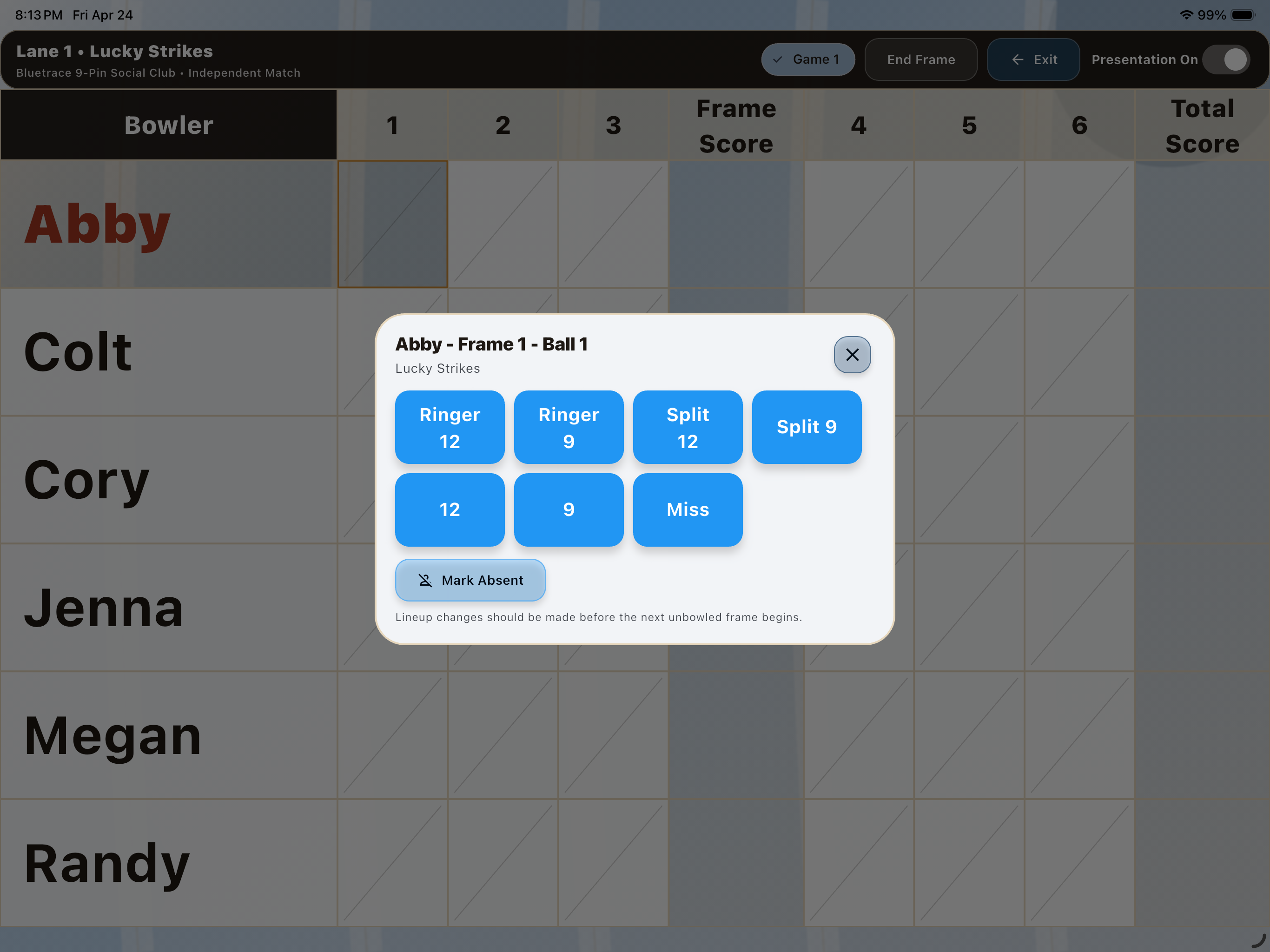
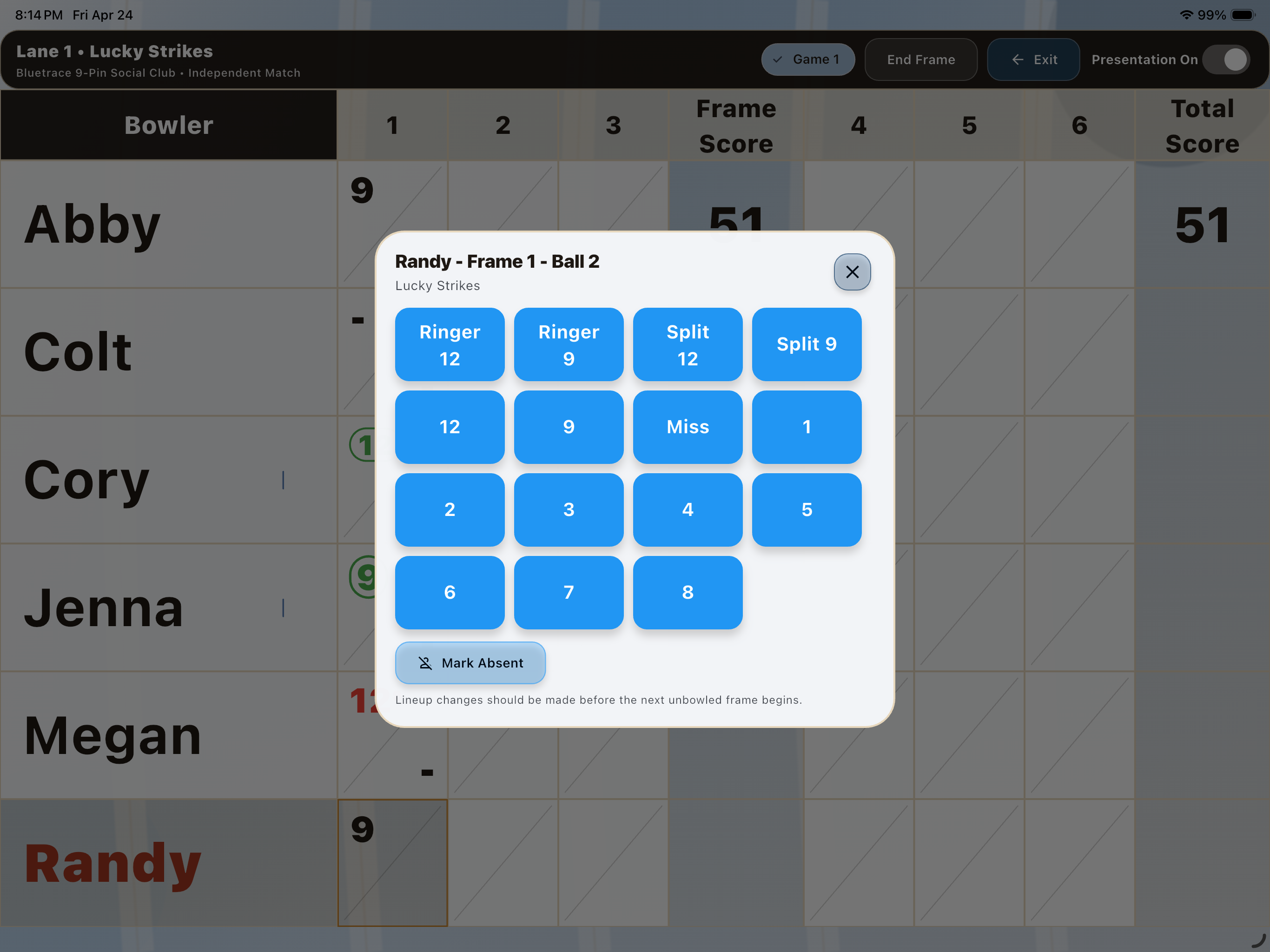
R9: full rack, all 9 pins downR12: full rack, red only leftSplit: split pickup scored as 9 and shown separately from a standard ringer9: partial rack cleared12: partial rack, red only left1-8: final-ball count for the last bowler in the frameMiss: non-clearing result
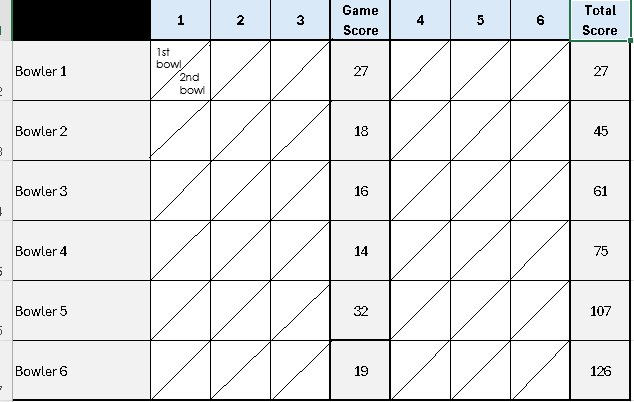
The printed scorecard layout uses 6 frames per game with a Game Score column after frame 3 and a Total Score column at the end:
Match Ownership
- The device that owns the match can keep scoring normally.
- If another device already owns that match, this screen becomes read-only on non-owner devices.
- Single-lane matches are not locked: each lane's tablet scores its own team, so there is no
Take Overbutton. - The session host can release or take over ownership when a lane tablet needs recovery or replacement.
- If the license is archived, the scoring screen is read-only on every device.
Team Roster Locking
- Team roster edits are locked only while that team is in a live
inProgressmatch. - Once a match is completed, roster editing is available again.
- Completed match history keeps the saved matchup and lineup details from the time the match was bowled, so later roster, team-name, or league-name changes do not rewrite that past result.
Match History
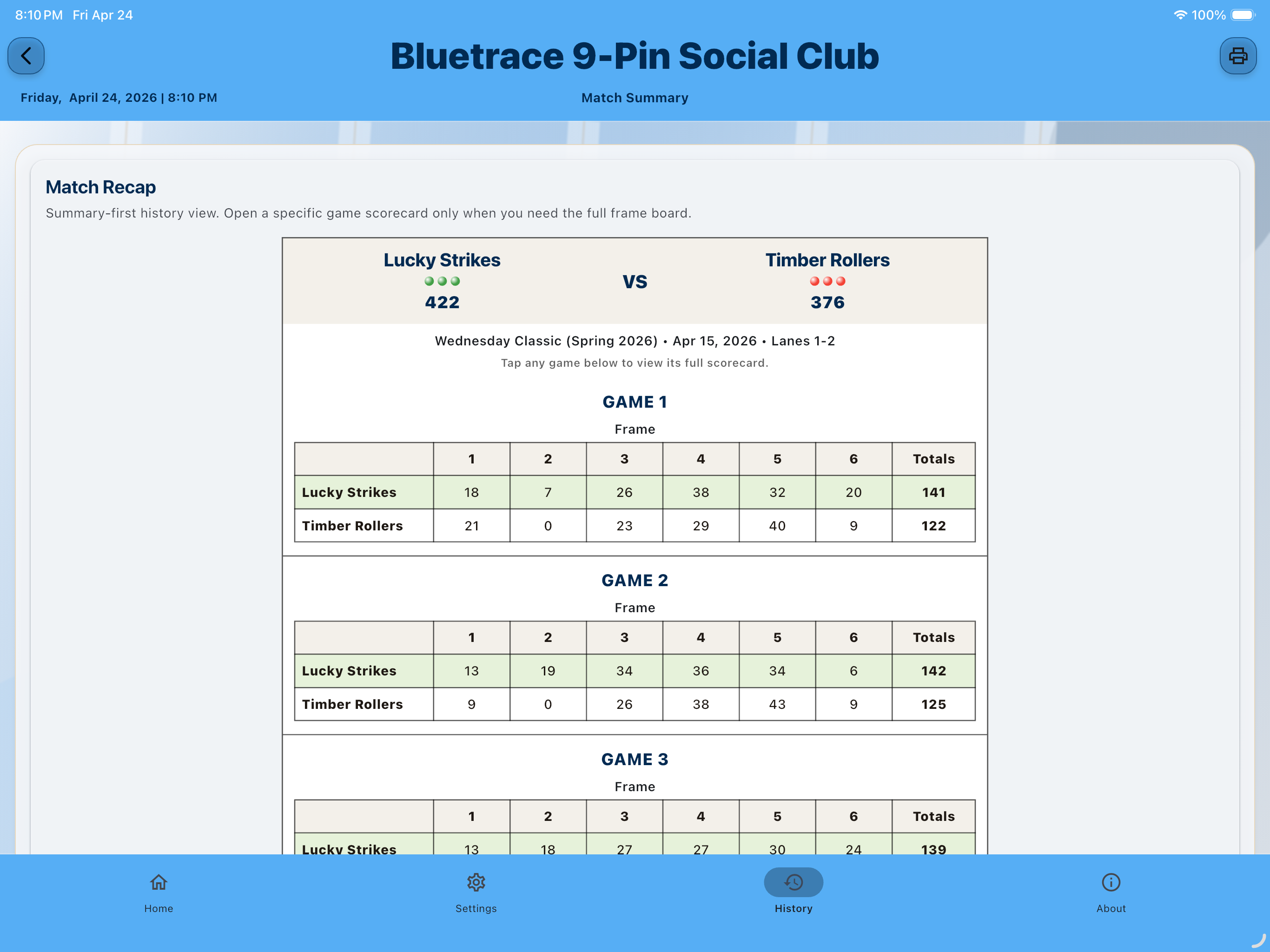
Historyopens completed matches on a summary screen first instead of dropping directly into live-style scoring.- The summary view shows series totals, league/date/lane metadata, and one recap table for each game.
- Tap any game block on the summary screen to open that specific game's full scorecard.
- In single-lane leagues, opening a completed game from history still shows both teams for review.
Recent Matcheson the dashboard uses the same completed-match summary flow.
Frequently Asked Questions
What is a nine ringer?
- When all 9 pins including the center red kingpin are knocked down, it is a nine ringer and scores 9.
- When all pins except the red kingpin are knocked down, it is a ringer 12 and scores 12.
Why was 9-pin bowling banned?
- Many states tied ninepins to gambling and other vices, so they outlawed it in the 1800s.
- Adding a tenth pin helped create the 10-pin game that spread nationally.
- Texas never banned 9-pin, which allowed the traditional club game to survive.
Where can you still bowl 9-pin today?
- Active organized 9-pin leagues in the United States are found in Texas.
- The strongest surviving club traditions are in and around communities tied to Bexar, Comal, and Guadalupe county areas.
Data Recovery Notes
Load Demo Datareplaces the local device snapshot with a training dataset. It asks for the admin PIN and forDEMOto be typed, so it can't happen by accident.Reset to Emptyclears the local club, leagues, teams, bowlers, matches, and branding on that device after saving a recovery backup first.- On devices using Firebase sync, recovery tools now fully drop the old club subscriptions before applying the new local snapshot so old remote match data does not immediately flow back in after a reset or demo load.
- On devices using LAN sync, an empty reset host now rejects reconnecting client republish traffic until the club is configured again, so stale lane tablets do not refill the blank device.
Lane Display / TV View
The app can show a dedicated scoreboard per lane on a TV or external display.
How It Works
- Each active lane in a match gets its own display route:
/display/<laneId>. - The host tablet also serves a real LAN browser page for each lane so a TV on the same network can open a full URL directly.
Settings > Advancedstores separateTV Display PortandTablet Sync Portvalues so the browser-based lane display and LAN scorekeeper sync can be configured independently. The two must be different.- When Firebase transport is configured, each lane also gets a dedicated subscriber route:
/display-remote/<clubId>/<laneId>. - The display is isolated to a single lane and team. Lane 1 only shows Lane 1. Lane 2 only shows Lane 2.
- The TV view shows bowler rows, per-frame attempts, ringer tallies, frame scores, running totals, and active bowler highlighting.
- On the LAN TV browser page, scorecard marks and text now scale together so the layout stays proportional across different TV screen sizes and browser windows.
- Ringer tally marks shown beside bowler names on score-sheet style displays now represent the running match total across all games in the match, not just the current game.
- When no live match is active for a lane, you can enable
Show a Waiting ScreeninSettings > TV Displaysso the lane shows a branded idle screen instead of disappearing from TV output. - Idle lane screens can show the club name, uploaded club logo or banner, and the lane number before live scoring starts. A club with no logo or background image shows the 9-Pin Scorer logo.
Final Results On TVs
When a match is finalized, both of its lane TVs show the final scorecard instead of going back to the waiting screen:
- The top shows
FINAL, the league, date and lanes, and each team's total with a dot per game (green won, red lost, gray tied). - Below, one table per game shows each team's points in frames 1–6 and the game total. The winning team's row is shaded green.
- A new match started on the same lanes takes over the TVs at once.
To send the TVs back to the waiting screen, use the Completed section of the admin device's dashboard (under Live Now). It lists every finished match still showing on the TVs:
Close Matchcloses one match;Close Allappears when several are listed. Both ask first. Scores are already saved, and the match stays inHistory.- Only the admin device has these buttons; scorer tablets do not.
Settings > TV Displays > Finished matches:
Return to Waiting Automatically(on by default): the TVs go back to the waiting screen on their own after the time set below.Show Final Result For: 5 to 60 minutes in 5-minute steps (default 15).- With
Return to Waiting Automaticallyoff, a final result stays untilClose Match, for up to 12 hours. - These settings stay on the admin device.
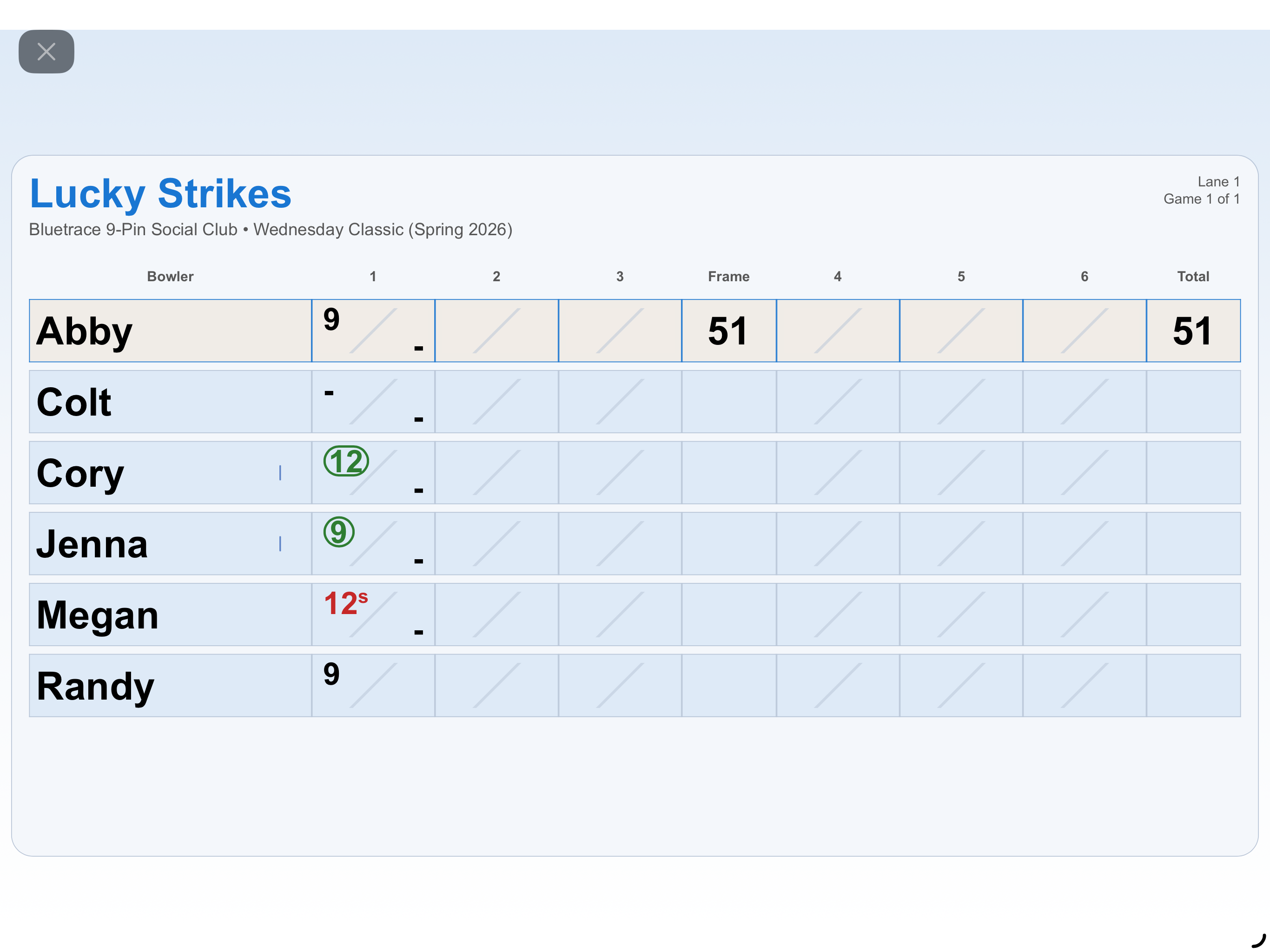
Using Device Setup For TV Output
- Open
Club > Device Setup. - Select the lane/device you want to review.
- Use
TV Browser URLfor a standalone TV browser on the same network. - Use
Open TV Viewwhen you want the in-app full-screen lane display on the tablet itself. - Use
Open Remote Subscriberonly when Firebase display publishing is configured.
Mirroring To A TV
- Presentation Mode is the recommended layout when the TV should show exactly what the scorekeeper is doing.
- On Android, open the live single-lane match, turn on
Presentation Mode, tapTV, then tapOpen Screen Cast. Choose the Chromecast or TV and confirm screen sharing in Android's system UI. - On an iPad, open the live single-lane match, turn on
Presentation Mode, then use Control Center >Screen Mirroringor a wired adapter. iPadOS does not allow the app to start AirPlay screen mirroring directly. - For a non-HDMI TV with a browser, open the
TV Browser URLshown in Device Setup instead of mirroring the tablet. - The TV layout scales automatically to fit the available screen size.
Notes
- The TV display is read-only. Scoring is always done on the scorekeeper device.
- Each lane produces its own separate TV session, so a lane-pair match results in two independent displays.
- The LAN TV browser page now uses the selected TV theme (
Settings > TV Displays), including title, card, and grid styling. - LAN TV browser tabs now publish their own 9-pin favicon so TV display URLs have a consistent tab icon in a browser.
Use the Background Image(Settings > TV Displays) switches idle lane branding from the club logo to the uploaded banner/background image when one is available.- Club logo and banner uploads can now be stored locally on the device when cloud storage is not configured.
- Branding previews now scale uploaded images to fit the preview area so large logos and banners stay fully visible while you review them.
- If Firebase transport is not configured, the remote subscriber route stays inactive and the app continues to run local-only.
Exports
Backup Export
Use Settings > Data & Recovery > Export Backup to save the local data snapshot.
Scorecard Printing
Use the history screen to open the platform print dialog for a scorecard containing:
- League
- Date
- Teams
- Game scores
- Scoring legend
Printed scorecards now use a scorecard-style PDF layout with one game per page.
The PDF exporter now bundles Unicode-safe fonts so club names, team names, and score text do not depend on Helvetica's limited character support.
If printing is unavailable in the current session, the app saves a local PDF copy instead.
Version Tracking
- App version is defined in
pubspec.yaml. - Android and iOS app versions are derived from Flutter build metadata.
- The setup screen shows the runtime package version and build.
- Release notes should be added to
CHANGELOG.mdfor each shipped update.
Packaging For Windows
- Build on a Windows machine with Flutter desktop enabled by running
flutter build windows. - Collect the full release folder at
build/windows/x64/runner/Release/. - Distribute that complete folder, or zip its contents for delivery.
Do not distribute only the .exe, because the Windows build also requires the sibling DLLs, asset files, and data/ directory.
Before building any production package, remove dummy or test data from the app so the release does not ship with fake club, league, bowler, match, or branding records.
The built-in demo dataset is intended only for product walkthroughs and feature previews. It now uses an 8-lane single-lane club, 6-bowler teams, a few free agents, and lower, sparser sample scoring so the scorecards look more like real league play.
Operational Notes
- Bowler IDs are permanent and should never be reused.
- Deactivate bowlers instead of deleting them.
- Team numbers stay fixed once assigned.
- Historical matches should be preserved even when teams or bowlers are inactive.