9-pin Scorer Quick Start
Use this guide to go from a fresh install to your first successful league night.
Before You Begin
- Pick one device to be the admin device: a Windows PC or Android tablet that stays at the center. iPads join as scorer tablets. It holds the center's license, runs club setup, and is the device the scorer tablets sync with.
- Gather the club name, lane count, and scoring mode.
- Make sure the admin device can reach the internet once, to activate. League night itself only needs the center's Wi-Fi.
How licensing works: the license is per center. Only the admin device enters a license key. Scorer tablets join by scanning a setup code from the admin device and need no key. The license sets how many devices the center can use, counting the admin device (the free trial allows 8: the admin device plus 7 scorer tablets).
Install The App
- Windows: download the installer from be9pin.com and run it. If Windows shows "Windows protected your PC", select
More info, thenRun anyway. - Android tablet: install 9-Pin Scorer from Google Play when available, or use the early-access link from Bluetrace.
- iPad (scorer tablets): install 9-Pin Scorer from the App Store. It's free. On the welcome screens, tap
Add This Deviceand scan the setup code from the admin device.
Set Up The Admin Device
- Open the app on the admin device and tap through the welcome screens.
- On the last screen, select
Create a Club. - On the
Licensescreen, selectStart 90-Day Free Trial(no key or payment needed). If your center bought a license, type its key underAlready have a club key?and selectActivate This Deviceinstead. - Enter the club name, create the admin PIN, and save the club.
- After the first save,
Homeshows aFinish Setting Upchecklist with the next steps.
The admin device runs on a Windows PC or an Android tablet. iPads join as scorer tablets (
Add This Device).
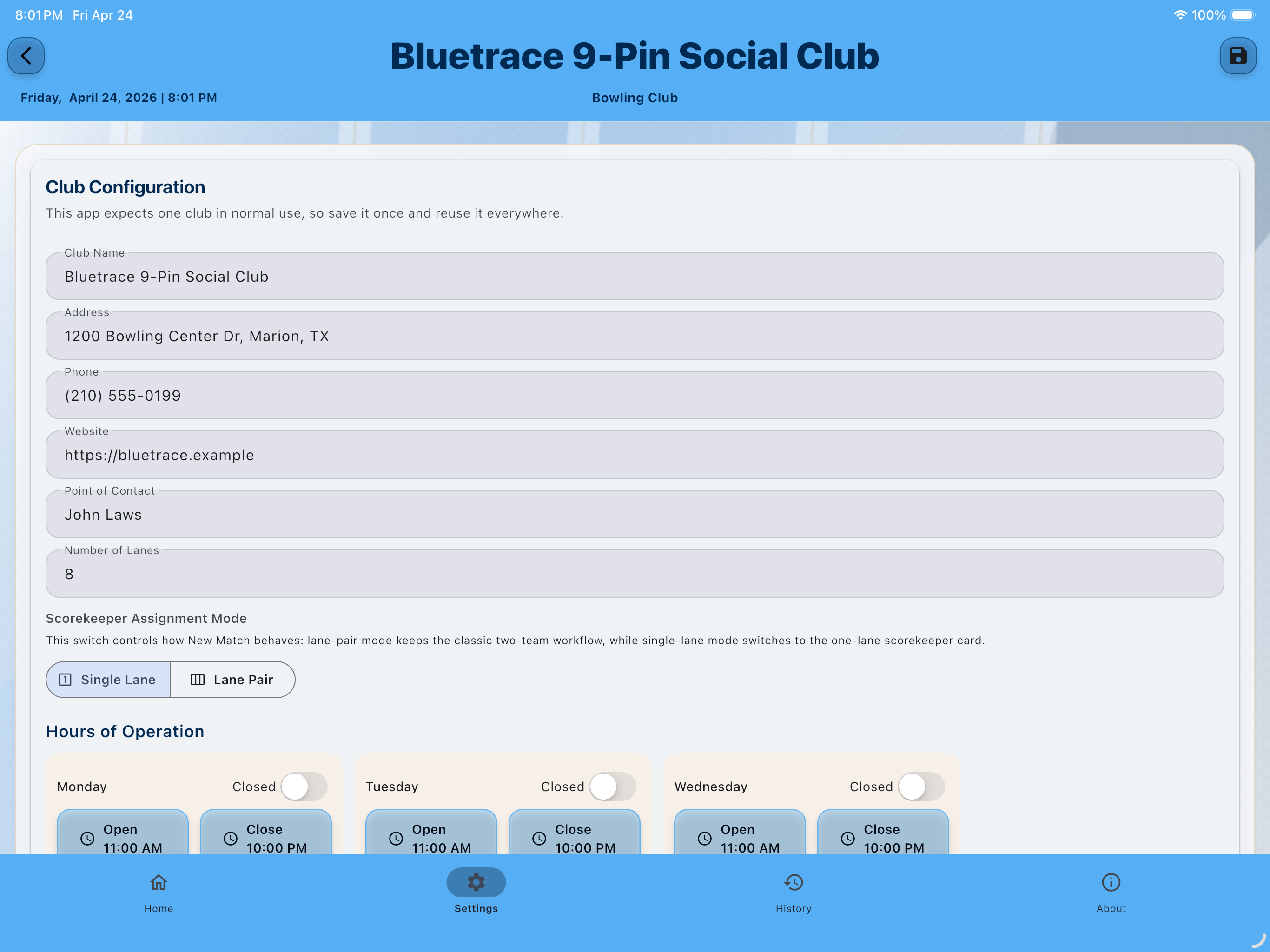
Result: this device is the center's admin device and the club is created.
Important:
- Keep the license key somewhere safe. You need it only to move the admin device to a different computer or tablet. Find it again under
Settings > License(Copy Club Key). - When a trial or license ends, the center's records stay viewable, but new matches and scoring are locked on every device until the license is renewed.
Add The Minimum Setup Data
- Open the
Clubtab. - Add the league.
- Add the teams.
- Add bowlers, or import them from pasted CSV or spreadsheet rows with optional
SexandEnroll Datecolumns. - Review the league schedule and lane assignments for the date you want to bowl.
Result: the app has the minimum data needed to start matches.
Add Scorer Tablets
On the admin device:
- Open
Club > Device Setup. The header shows how many devices the license allows, for exampleDevices: 1 of 8. - Select
Add Device, enter aDevice Name(for example "Lanes 1-2"), setRoletoScorer Tablet, choose its lanes, and selectSave. If another scorer tablet already has those lanes, the app asks before assigning them. - With that device selected, tap the QR code icon (
Setup QR Code). The setup code, address, and a 6-digit code appear.
On the tablet:
- Install the app, open it, and tap through the welcome screens.
- On the last screen, select
Add This Device. - Scan the QR code on the admin device. No camera (for example a Windows PC)? Select
Enter Code Insteadand type theAdmin IP Addressand 6-digitJoin Codeshown under the QR code.
Result: the tablet joins the club as a scorer device with its lanes and settings. It needs no license key.
Prepare Devices
- Open
Club > Device Setup. - Select the device that will be the
Session Host(normally the admin device). - Confirm each scorer tablet has the correct lane or lane pair.
- Use one admin device per center. It has no lane; turn on
Score matches on this deviceinDevice Settingsonly if it should also score. An additional admin device needs its own Admin Only license key.
Result: each device has the correct role and lane access.
Keep Tablets Up To Date
Scorer tablets get matches from the admin device automatically. League setup (teams, bowlers, schedules), Settings, the admin PIN, and lane changes made in Device Setup reach a tablet when it syncs:
- On the tablet:
Device Info>Sync Now. - On the admin device:
Club > Device Setup, select the tablet, and tapSync(the circular-arrows button next toRefresh).
Re-Scan Setup QR still works, but Sync Now is quicker.
Start League Night
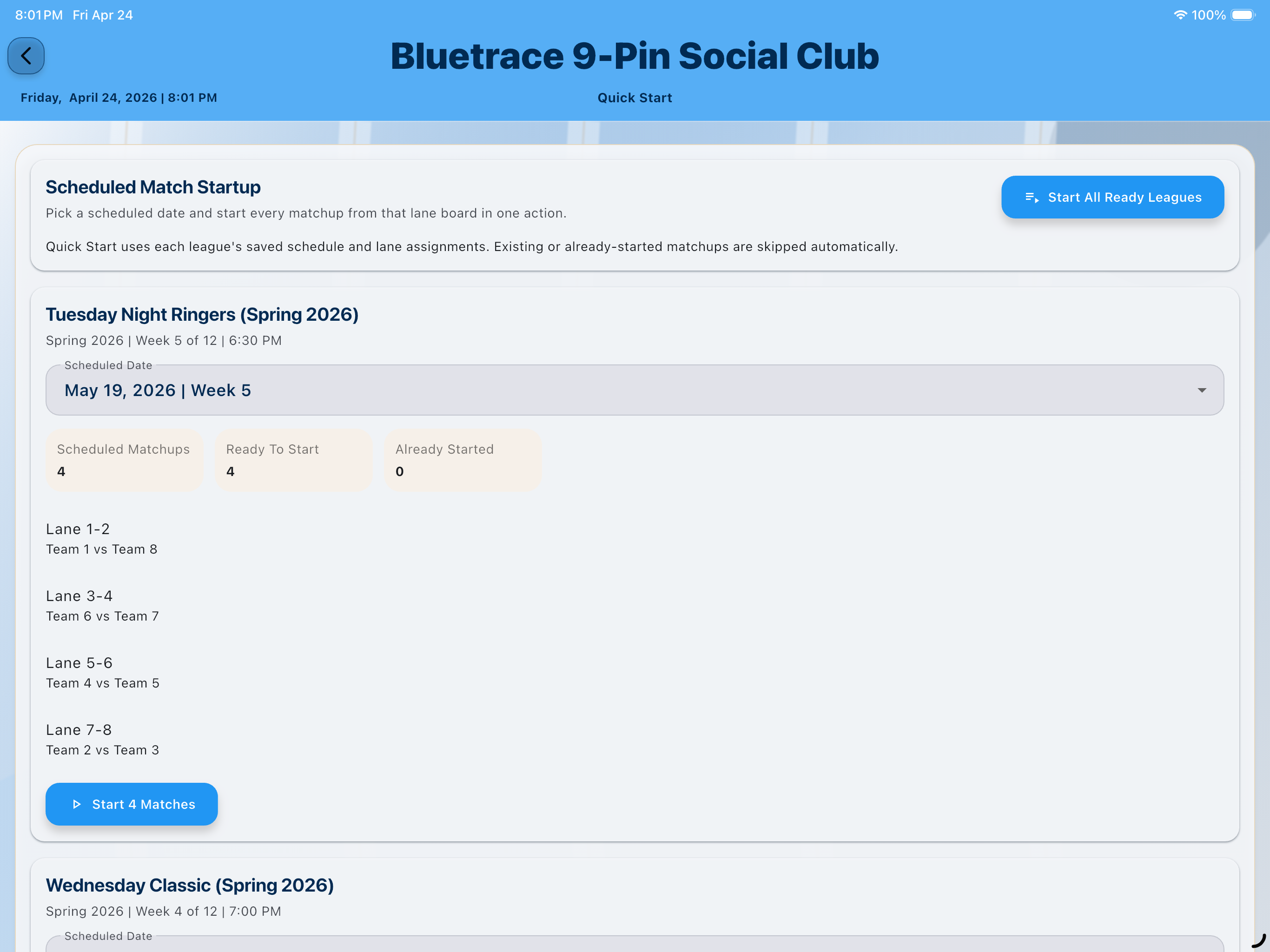
- Open
Club > Start League Night. - Choose the scheduled league date.
- Review the ready matchups and lane list.
- Start the ready matches for that league, or select
Start All Ready Leagues.
Result: the scheduled matches are created and ready for live scoring.
Start Scoring
- Open the assigned match on the lane device.
- Confirm the teams and lineups.
- Mark any missing bowlers as
Absent. - Select
Start Live Scoring.
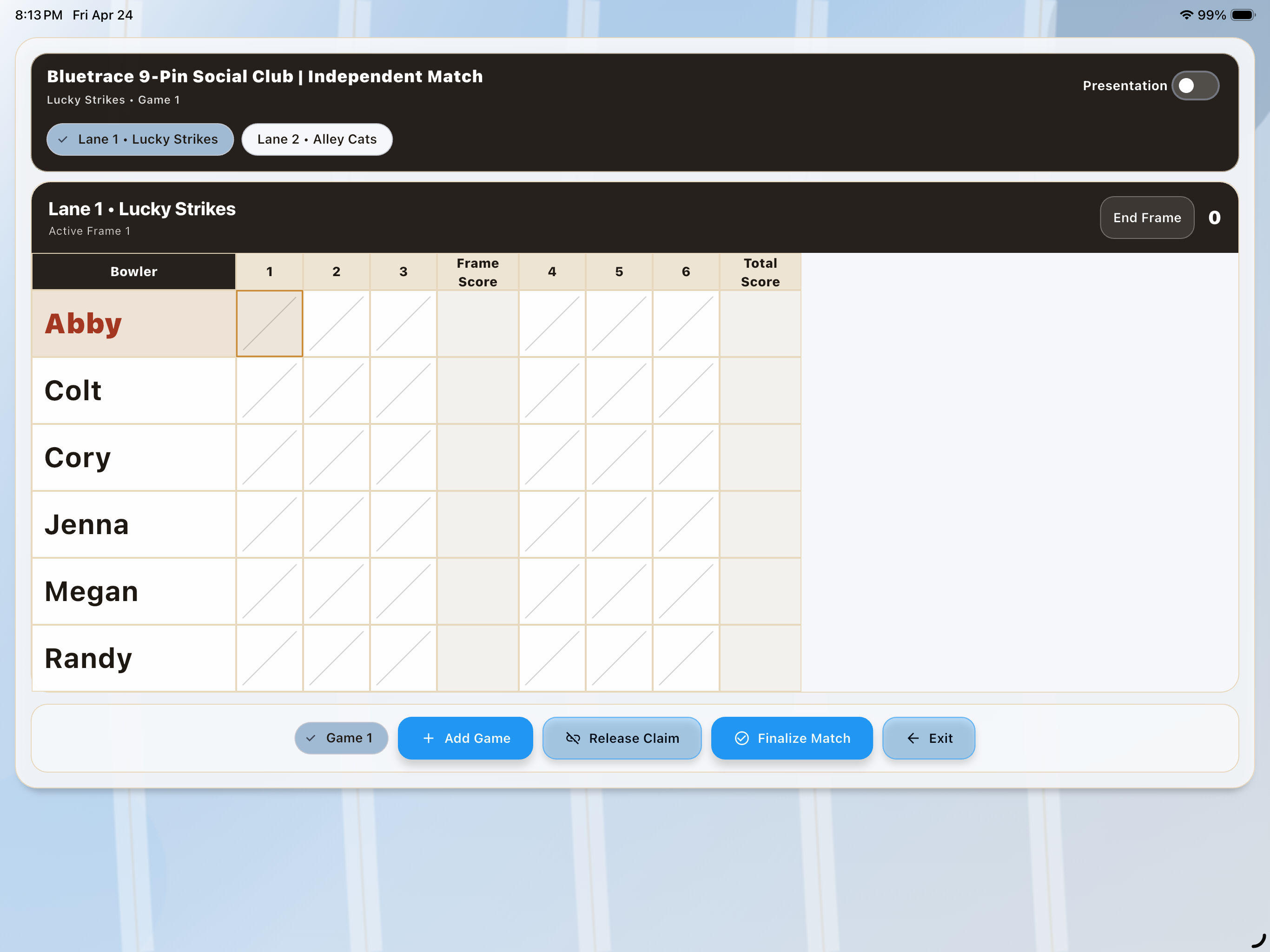
Result: scoring begins on the lane device.
Show Scores On A TV
To mirror what the scorekeeper is doing:
- Open a live single-lane match.
- Turn on
Presentation Mode. - Tap
TV. - On Android, tap
Open Screen Cast, choose the Chromecast or TV, and confirm screen sharing. On iPad, use Control Center >Screen Mirroring.
If a TV or computer can open a local browser page instead, use Club > Device Setup > TV Browser URL.
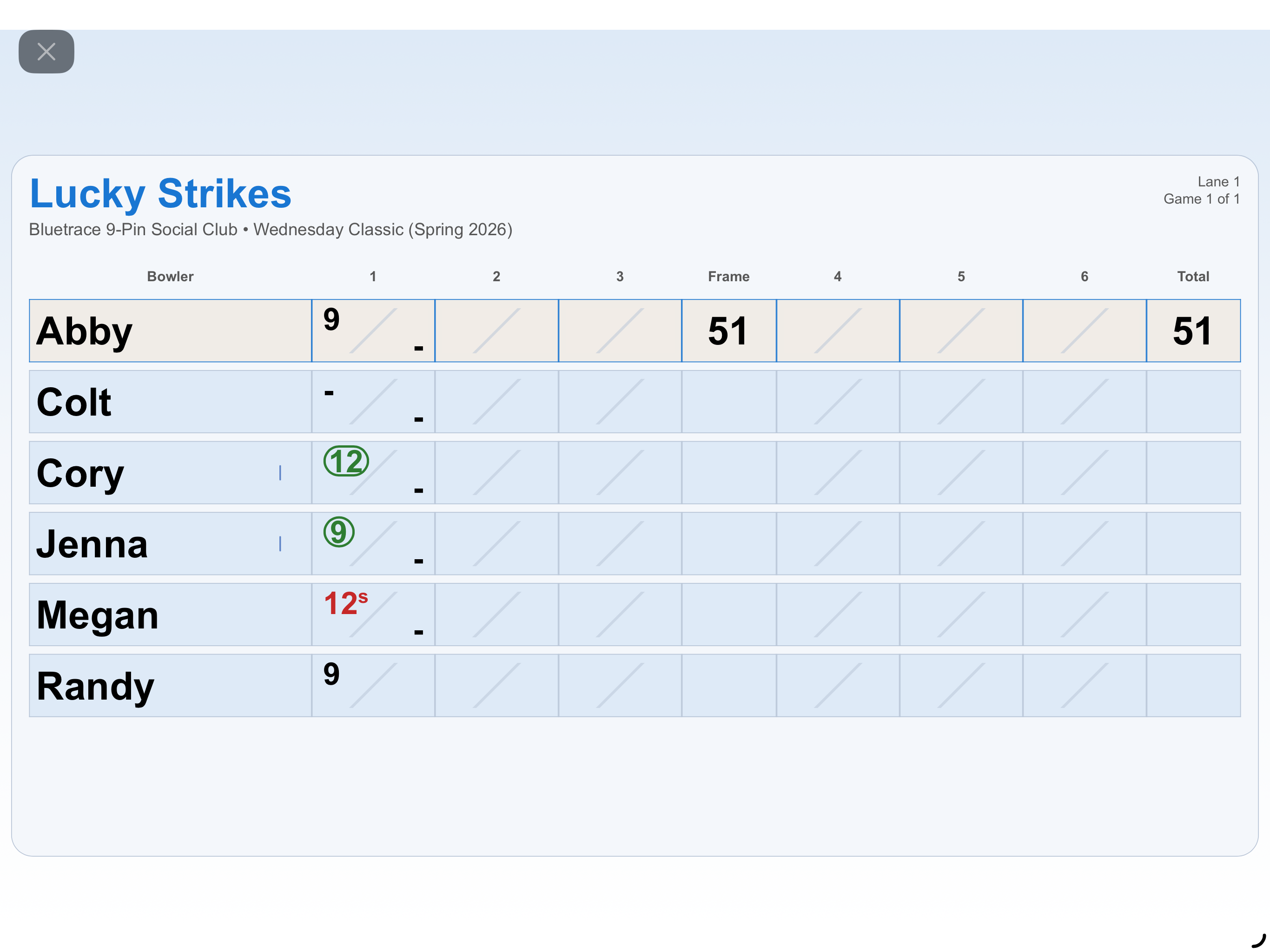
Result: that lane now has a read-only TV scoreboard.
End Of Night
- Finalize completed matches.
- Open
Settings > Data & Recovery. - Select
Export Backup.
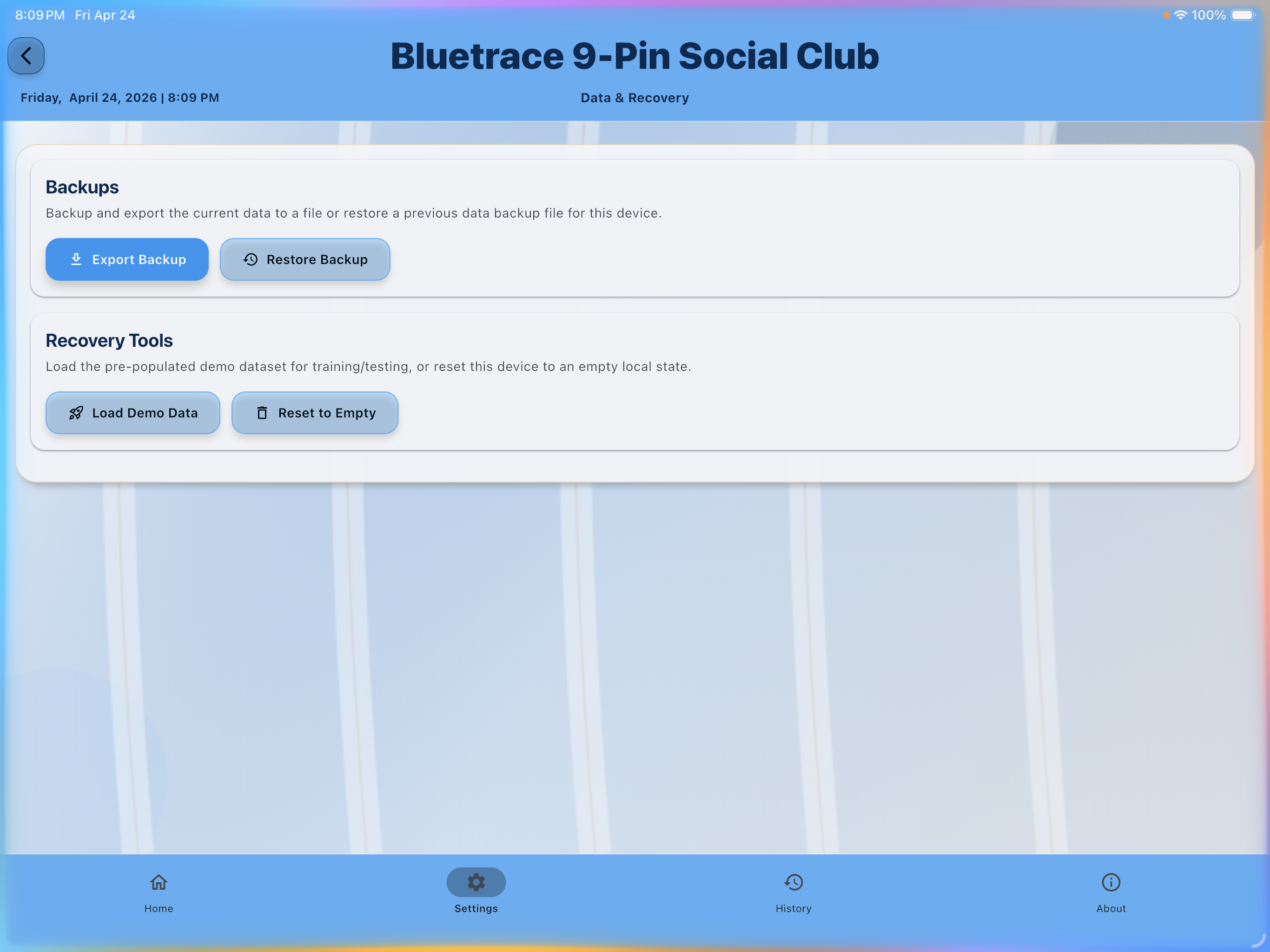
Result: your current club data is saved to a backup file.
If You Need More Detail
- Day-of-use guide: Basic User Guide
- Full guide: Full User Guide
- Something not working: Troubleshooting
- Questions: support@bluetrace.net